Guide 2.10
Put entrants into a round
A round only scores the entrants listed on its Round Entrants tab. Add them one by one, or fill the whole field in one go.
Who can do thisSuper AdminAdminModeratorAuditorTabulator
The entrants of an event are not scored until they are placed in a round. The Round Entrants tab is that list. Anyone who can open the round can read it. On the round's Edit page it also holds the buttons below.
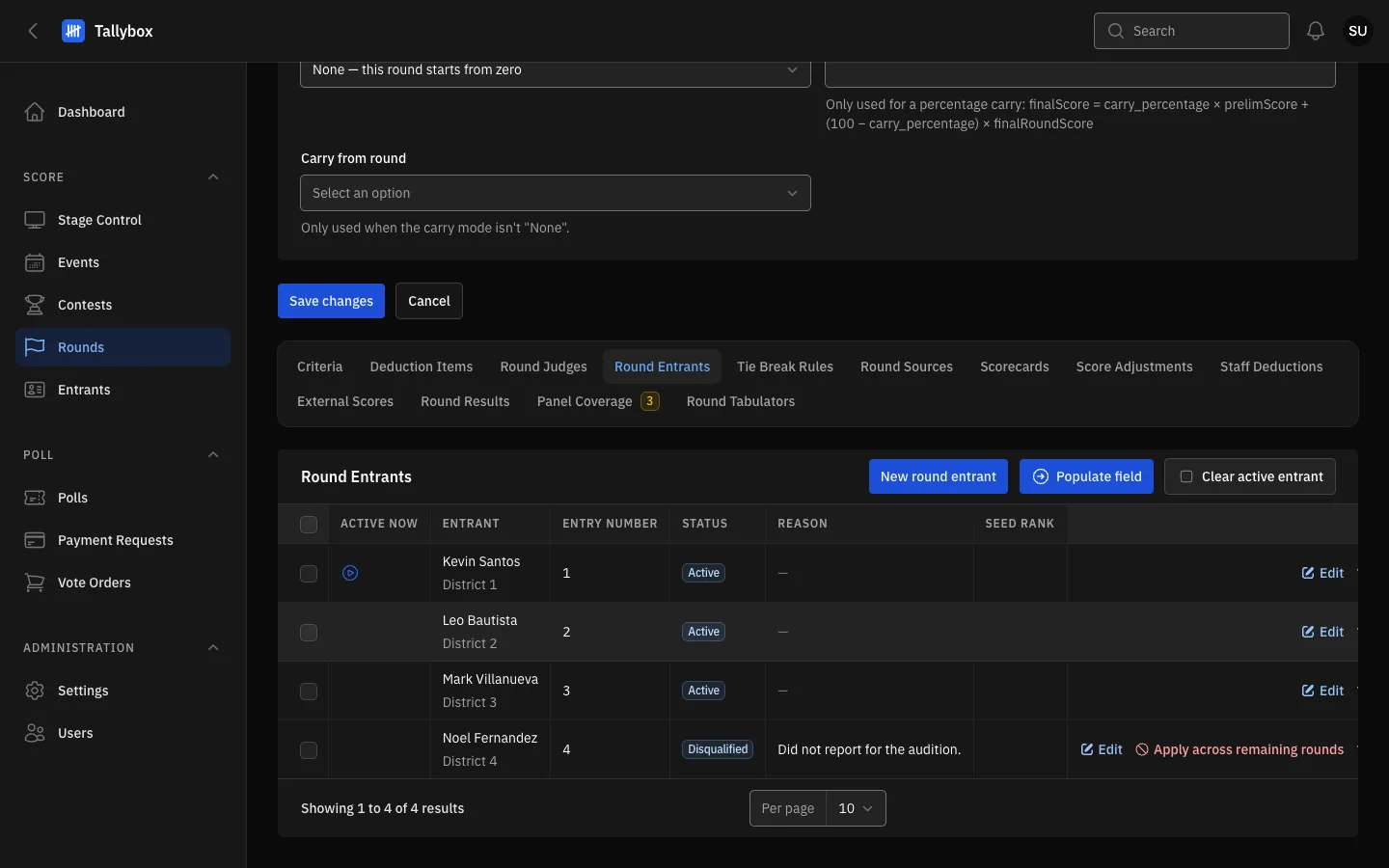
- New round entrant: adds one entrant to this round.
- Populate field: fills the round from another source in one step.
- Clear active entrant: shows only while one entrant is on stage. Used on the night.
- The marker shows the active entrant, the one judges are scoring right now.
- Apply across remaining rounds: copies this entrant's status and reason to their other rounds.
Fill a round in one step
- Open the round and choose Actions, then Populate fieldIt is also on the Round Entrants tab. It works on the View page too.
- Choose a SourceThe results of a previous round, another round's field, the contest's roster, or all of the event's entrants.
- Pick the Source roundNeeded only for the two round-based sources. A results source lists only rounds that have been computed.
- Leave Only Active entrants on, unless you want withdrawn or disqualified entrants too
- Add Wildcards if one or more entrants should join regardless of their placementFor example a public-vote winner. Wildcard mode says whether they add to the field or replace the lowest placed.
- Check the line under Will add, then confirm
Someone else may be in control. If another staff member is running the floor for the contest, Populate field stops with a message saying so. Try again when they have finished.
Add or change one entrant
- Open the round, choose Actions, then Edit, and pick the Round Entrants tab
- Choose New round entrant and pick the Entrant
- Set an Entry number if the show runs in a fixed orderYou can also choose a Round photo, a seed rank and a sort order.
- Save
Use Edit on a row to change one, and Delete or Delete selected to remove entrants from the round. This removes them from the round only. The entrant stays on the event.
Withdraw or disqualify an entrant
Choose Edit on the entrant's row and change Status. You must also type a reason. The status then shows in the table with its reason.
- Choose Apply across remaining rounds on that rowIt shows only when the status is not Active.
- Check the reason and confirmA message tells you how many rounds were updated.
Rounds that already have results are left alone. Apply across remaining rounds changes the same entrant in every other round of the contest that has not been computed yet, so you do not repeat the change by hand.