Guide 2.9
Add and manage entrants
An entrant is a person or team being scored. You add entrants once for the whole event, then place them into rounds.
Who can do thisSuper AdminAdminAuditor
An entrant belongs to an event, not to a single round. The same entrant can then appear in several rounds, and in a poll. Open Entrants in the Score menu to see them all.
Find an entrant
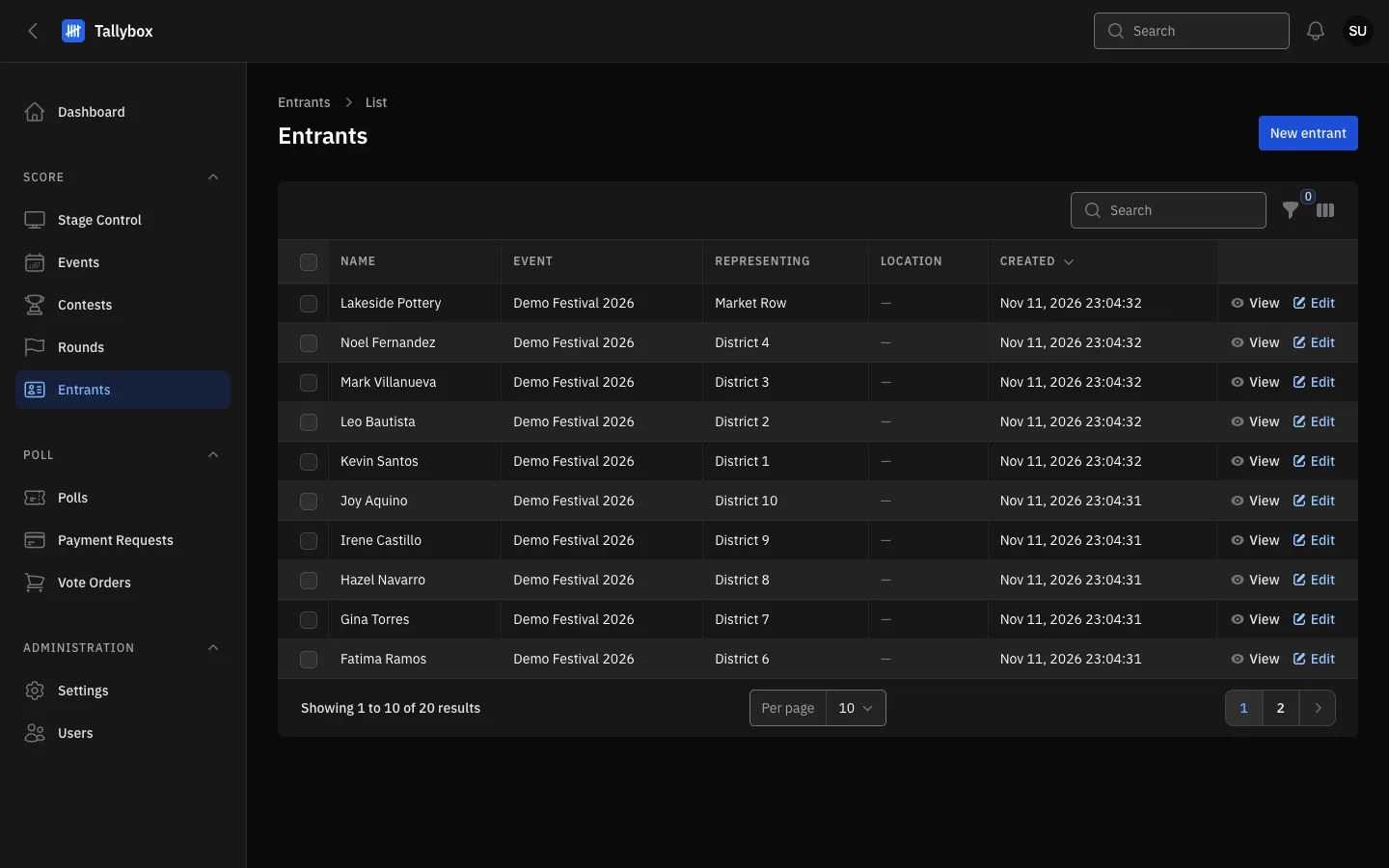
- New entrant: opens the form to add one. Admins only.
- Search by name. The filter beside it narrows the list to one event.
- Tick rows to remove several at once with Delete selected, under Bulk actions.
- View opens the entrant to read it. Edit opens it to change it, and is for Admins only.
Auditors can read the list and open an entrant, but cannot add or change one. Use View to see an entrant's code, event, who they represent and where they can be found.
Add an entrant
- Choose Entrants in the Score menu, then New entrant
- Pick the Event and type the entrant's NameThese two are required.
- Fill in Representing and Location if they helpRepresenting is the group, town or organisation. Location is where to find the entrant, which matters for booth judging.
- Add a Photo, and extra photos in Gallery if you have themThe photo is the entrant's default. A round or poll can use a different one from the gallery.
- Choose CreateCreate and create another saves this one and opens a blank form.
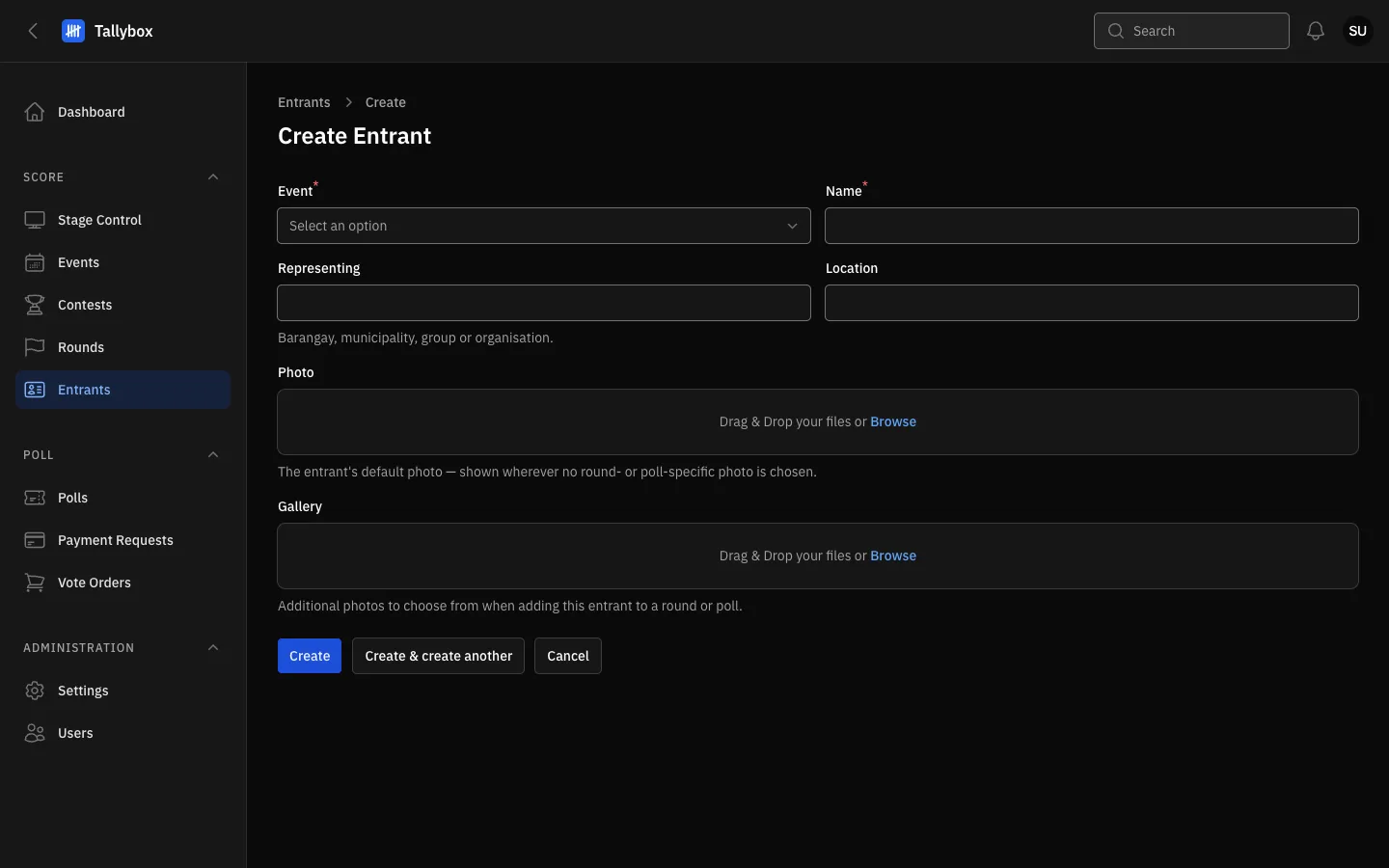
- Event: the event this entrant belongs to. Required.
- Name: how the entrant is shown to judges and on results. Required.
- Photo: drop a picture here or choose Browse.
- Create saves the entrant.
Change or delete an entrant
- Choose Edit on the entrant's row, or open the entrant and choose Edit
- Change what you need and choose Save changes
- To remove the entrant, choose Delete at the top of the Edit pageView on the Edit page takes you back to the read-only page.
Deleting is permanent. Do not delete an entrant who has already been scored. To take an entrant out of one round, change their status in that round instead. See Put entrants into a round.