Guide 2.11
Give judges access to score
Judges never sign in to this panel. Each one gets a private link and a PIN that opens their own scoring screen for one event.
Who can do thisSuper AdminAdmin
A judge is a user with the Judge role. They have no password and cannot use the admin panel. Instead, you issue judge portal access: a link, a QR code and a six digit PIN that the judge uses on their phone or tablet. Access belongs to one judge and one event, and it stops working on the day the event ends.
Do this after the judges are on the panel. Add each judge to their rounds first. See Configure what a round scores.
Issue access
- Choose Users in the Administration menu, then Edit on the judge
- Scroll to Judge portal access and choose Issue access
- Pick the Event and choose Issue access again
- Share the link or QR code and the PIN with the judgeUse the arrow below the QR code to download it. Use the copy button to copy the link.
- Choose Done
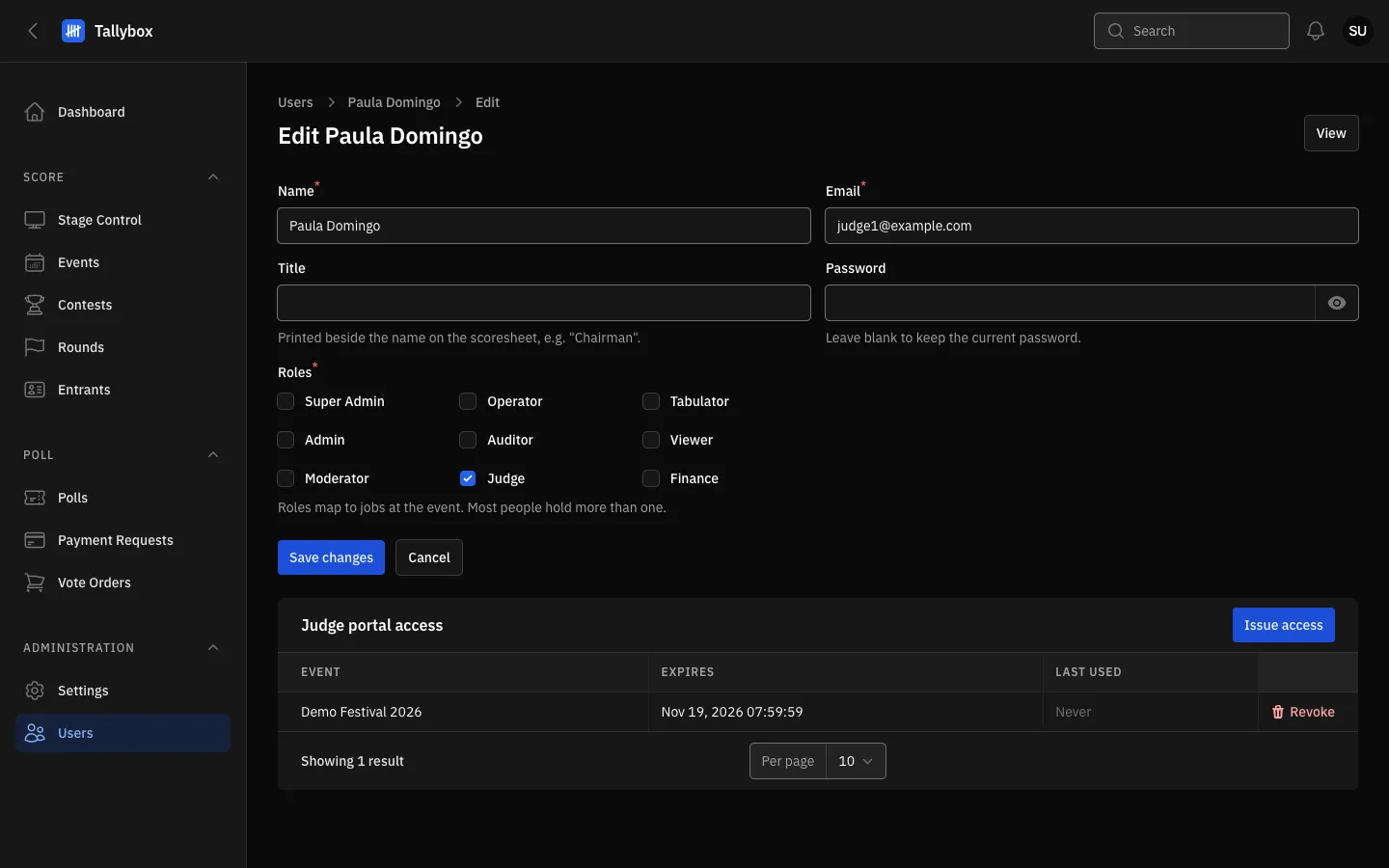
- The Judge role is what makes this person a judge.
- Issue access: creates a new link, QR code and PIN for one event.
- Revoke: switches this access off straight away.
The PIN is shown only once. Copy it before you choose Done. If you lose it, issue access again.
Issuing again replaces the old access. A judge has one active access per event. Issuing a new one cancels the previous link, which is the quick fix for a lost or shared link.
Why Issue access may not work. The button is greyed out on a deactivated user: reactivate them first. It also fails if the event has no end date, because the access would never expire. Set the end date on the event first.
Revoke access
- Open the judge with Edit, and scroll to Judge portal access
- Choose Revoke on the row, then confirmThe link and PIN stop working immediately.
Revoke shows only on the Edit page. The View page lists a judge's access but has no Revoke button, and a user with no access has no rows to revoke. To bring the judge back, issue access again.