Guide 5.3
Add, disqualify and reactivate poll entrants
Choose who people can vote for in a poll, and take an entrant out of the voting without losing their record.
Who can do thisSuper AdminAdminAuditor
A poll entrant is an entrant who can receive votes in one poll. A poll's entrants are listed on the Poll Entrants tab, under the poll's details. A Super Admin or an Admin can add, change, remove, disqualify and reactivate them. An Auditor can read the list only.
Read the list
- Choose Polls, then View on the poll
- Scroll down and choose the Poll Entrants tab if it is not already showing
- Read the Active column and the Disqualified - reason columnA green tick means voters can vote for the entrant. A red cross means the entrant is disqualified, and the reason is written beside it.
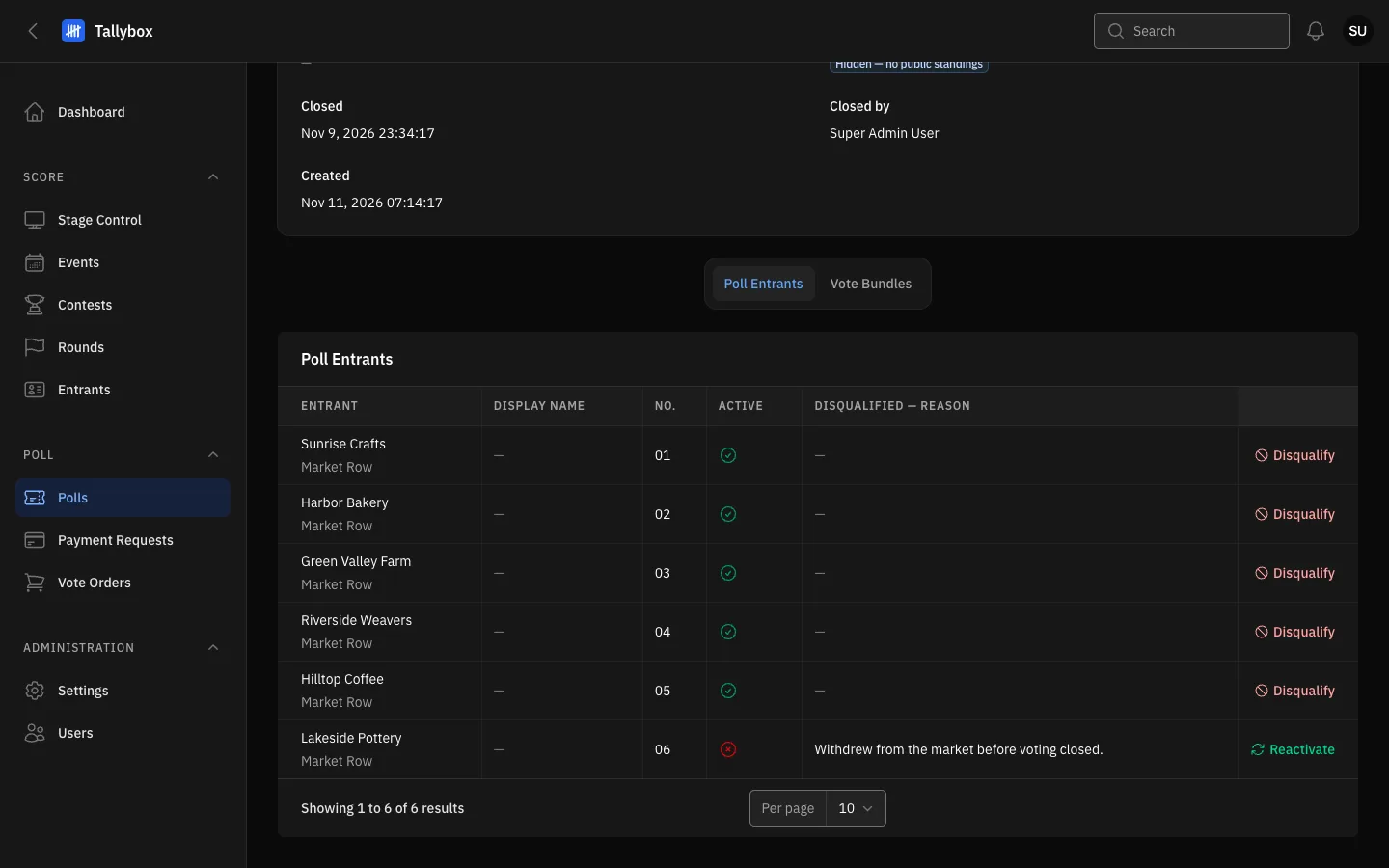
- Poll Entrants tab. The Vote Bundles tab sits beside it.
- Disqualify: shown for entrants who are still active.
- Reason: what was written when the entrant was disqualified.
- Reactivate: shown only for a disqualified entrant.
Add, edit or remove an entrant
- Choose Edit on the poll, then scroll down to the Poll Entrants tab
- Choose New poll entrant
- Pick the EntrantYou can only pick entrants who exist in Tallybox already.
- Fill in the optional boxesDisplay name changes the name voters see. Entry number is the sash, booth or entry number as announced. Description is one or two lines shown under the name. You can choose a photo from the entrant's gallery or upload one.
- Choose Create
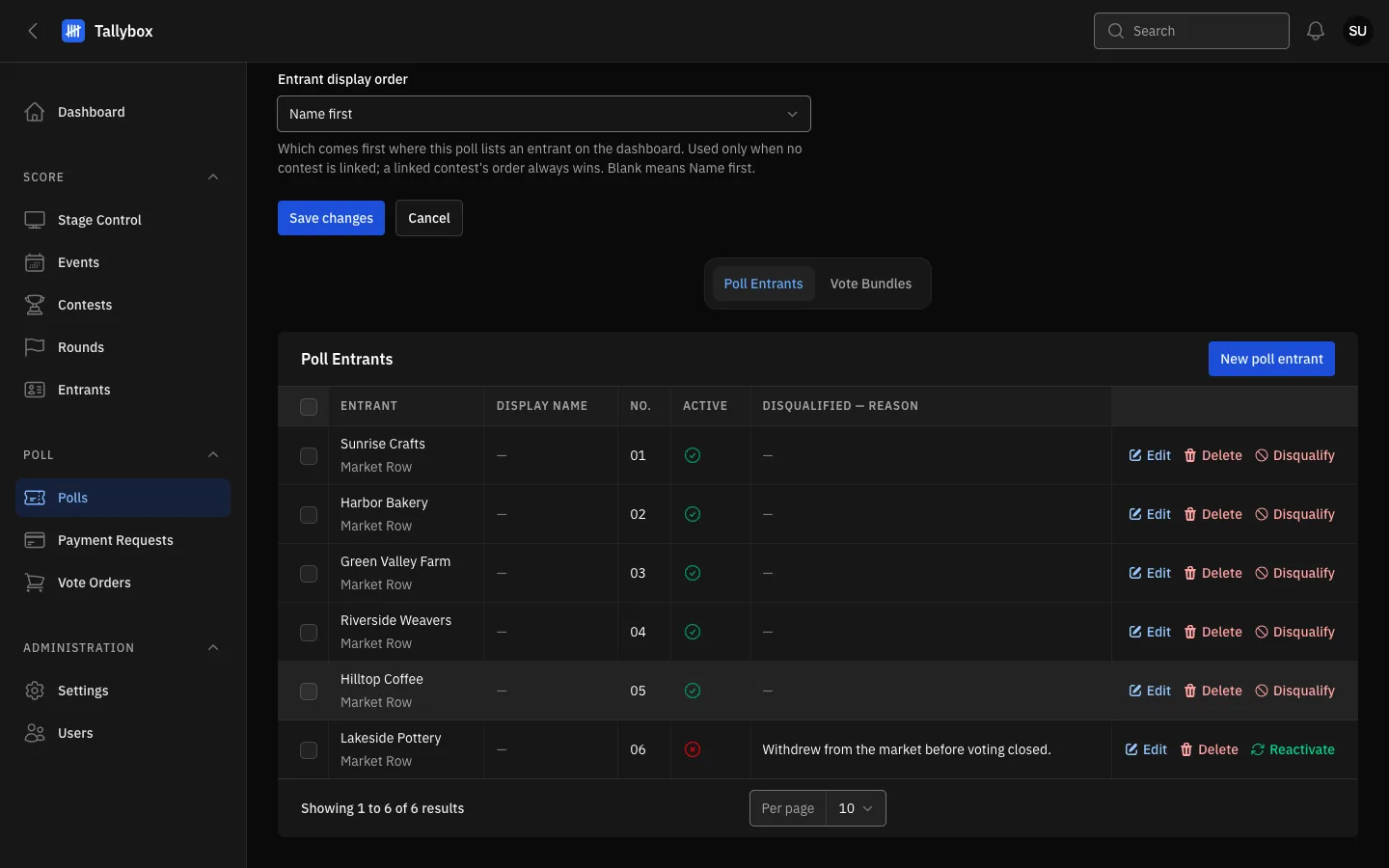
- New poll entrant: adds an entrant to this poll.
- Edit: change the display name, number, description or photo.
- Delete: removes the entrant from the poll. It fails if the entrant already has vote orders; use Disqualify instead.
To remove several at once, tick their boxes and choose Delete selected. Edit, Delete and New poll entrant appear only on the Edit page, not on View.
To stop votes for someone, disqualify. Do not delete. Delete removes the entrant from the poll, and it fails for an entrant who already has vote orders. Use Disqualify for those entrants: it keeps them and their existing votes on record.
Disqualify an entrant
- On the Edit page, choose Disqualify on the entrant's row
- Type the ReasonThe reason is required and is shown in the list afterwards.
- Choose Submit
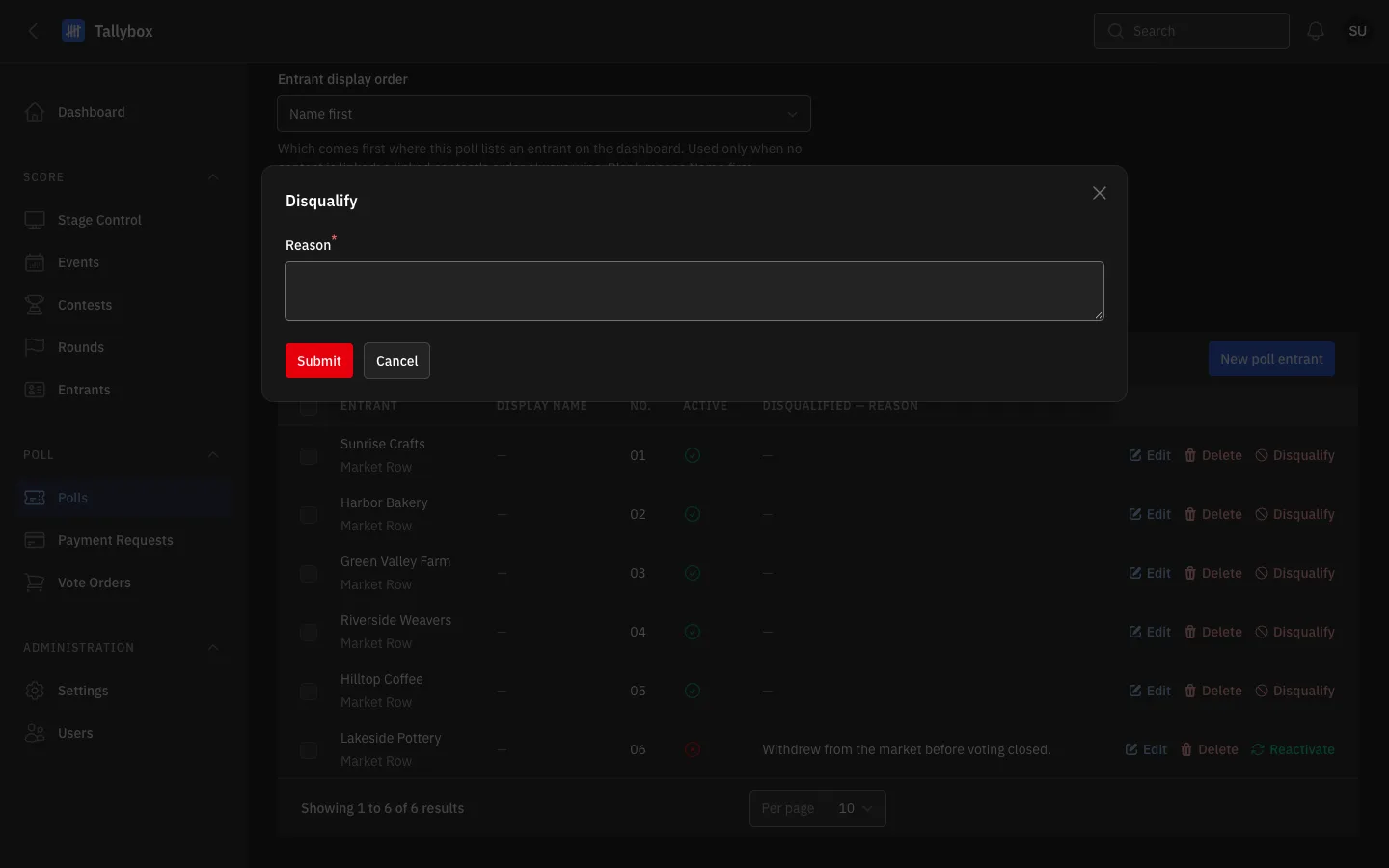
- Reason: required.
- Submit: disqualifies the entrant.
- Cancel: closes the box without changing anything.
The entrant is marked inactive, and Tallybox records who disqualified them and when. Their record and any votes already counted stay.
Reactivate an entrant
- On the entrant's row, choose Reactivate
The entrant becomes active again and the reason is cleared.