Guide 4.2
Release a round's results
Make a computed round's results official, so results pages and the stage screens can show them. You can take them back.
Who can do thisSuper AdminAdmin
Computed results stay private. Releasing them makes them official: results pages and the stage screens show a round's results only after release. Only a Super Admin or an Admin can release or unrelease.
Release results
- Check the placements and settle any tie firstSee Compute a round and Break a tie.
- Go to Rounds and choose View on the round
- Choose Actions, then Release resultsThis entry appears only for a computed round that has not been released.
- Choose Confirm
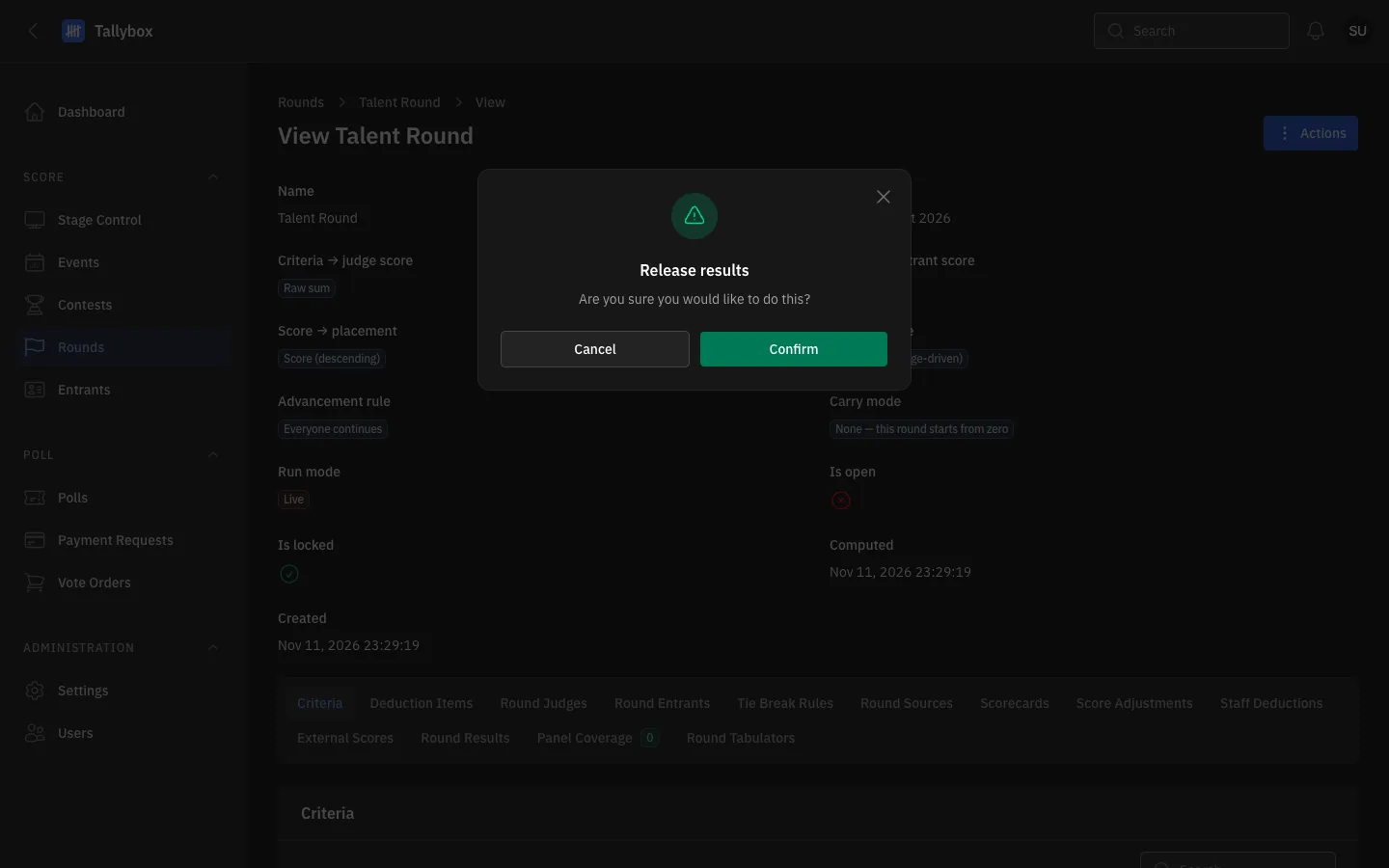
- Cancel: closes the window and releases nothing.
- Confirm: releases the results.
A green message confirms the release. The results can now be shown on stage through Stage Control, where an Operator chooses what the screens show and triggers the reveal.
Check before you confirm. Once released, results can appear on results pages and stage screens. Make sure every score is in and every tie is settled.
Take results back
If something needs fixing after release, withdraw the release, make the change, compute again and release again.
- Go to Rounds and choose View on the released round
- Choose Actions, then Unrelease resultsThis entry appears only for a round that has been released.
- Choose Confirm
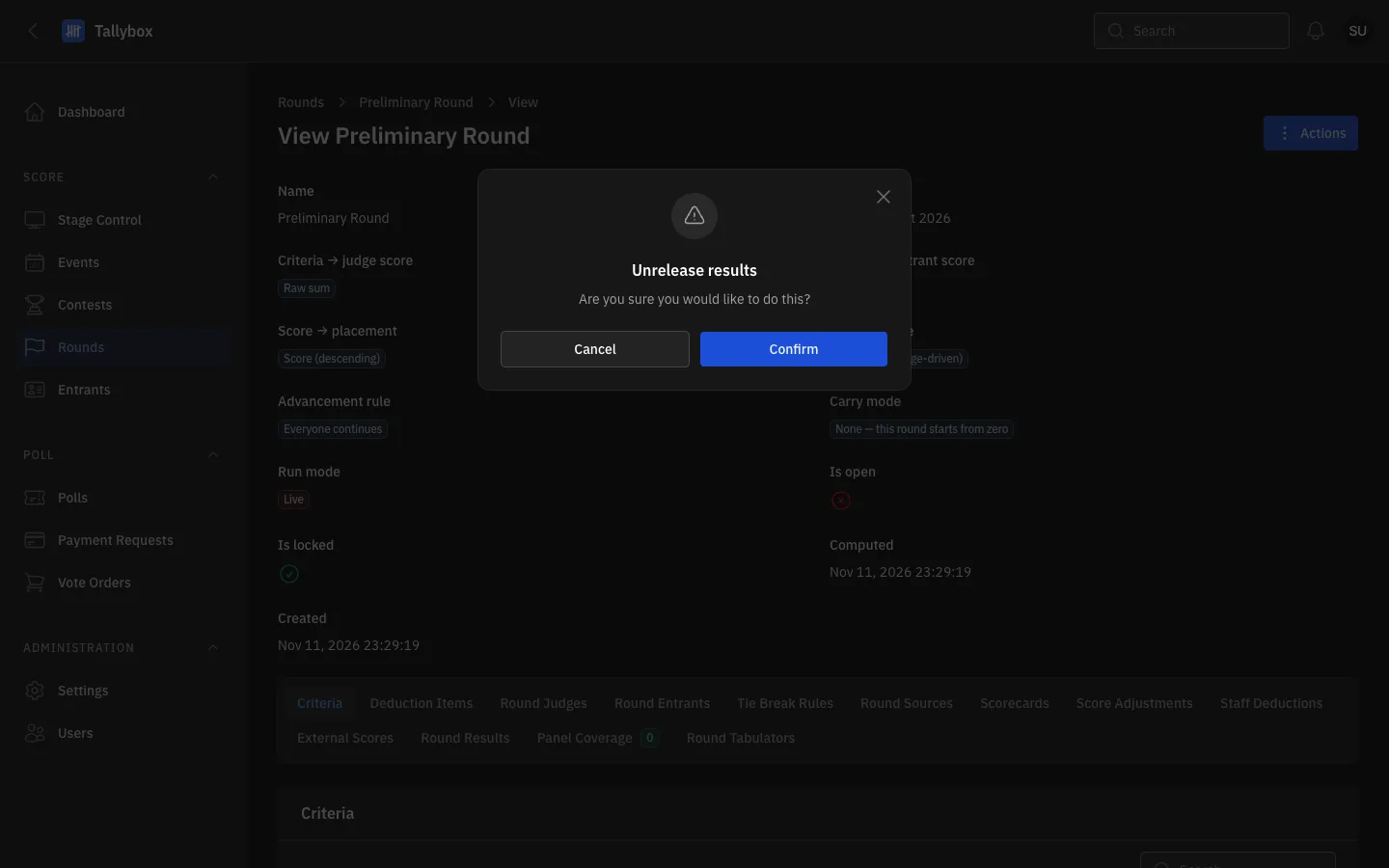
- Cancel: closes the window and keeps the release.
- Confirm: withdraws the release.
Changes are blocked while results are released. For example, staff deductions can no longer be recorded once results are released. See the FAQ.