Guide 6.3
Change your password
Choose a new password for your own account. Every role can do this.
Who can do thisSuper AdminAdminModeratorOperatorAuditorTabulatorViewerFinance
Change your password whenever you want, and straight away if you think someone else knows it. If you forget it, ask a Super Admin or an Admin to set a new one for you. An Admin can only do this for users who are not Admins or Super Admins.
Change it
- Choose your initials at the top right, then Change password
- Type your Current password
- Type the New password, then type it again under Confirm new passwordIt must be different from your current one. Use the eye button to check what you typed.
- Choose Save changesA green "Password updated" message confirms it.
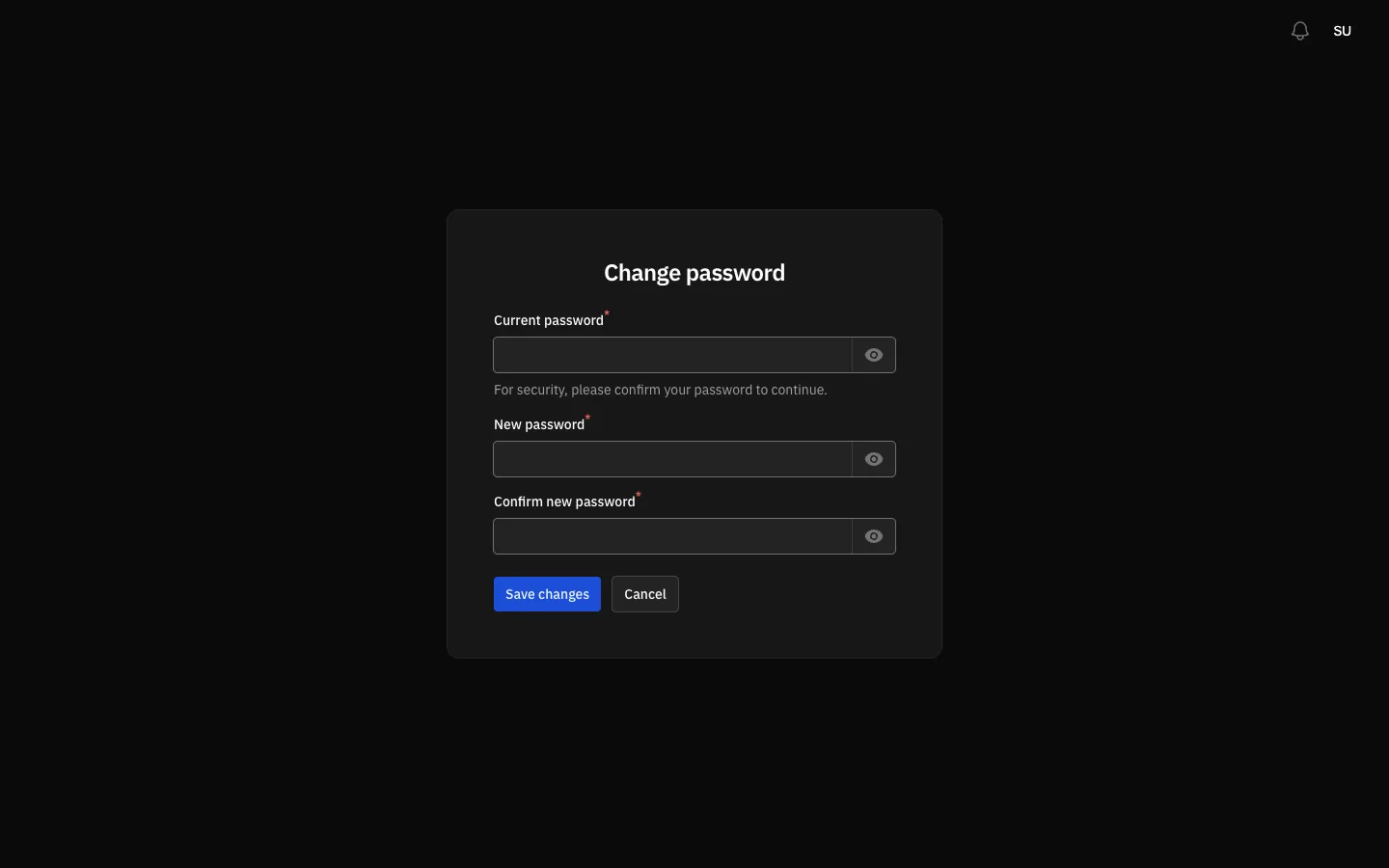
- Current password: proves it is really you.
- New password: must differ from the current one.
- Confirm new password: type the same thing again.
- Save changes: sets the new password.
Given a temporary password? When an account is set up with a temporary password, Tallybox asks you to choose your own the first time you sign in. That screen has no Current password field and no Cancel button: pick a new password to continue.