Run Stage Control
Take control of the stage screen for a contest, choose what the audience sees, and trigger the winner reveal.
Who can do thisSuper AdminAdminOperator
Stage Control is the screen the stage desk uses to run the projected display for a contest. Only one person at a time can be in control of a contest's stage, so two people never fight over the screen. Super Admins, Admins and Operators can use it. Other roles do not see it in the menu.
Open Stage Control and pick a contest
- Choose Stage Control under Score in the left menuOperators can also choose Open Stage Control on the Dashboard. It is the only card an Operator has there.
- Pick the contest in the Contest listOnly active contests are listed.
- Read the three panelsControl says who is in charge. Connection says whether the stage screens can be reached. On stage says what the audience is seeing now.
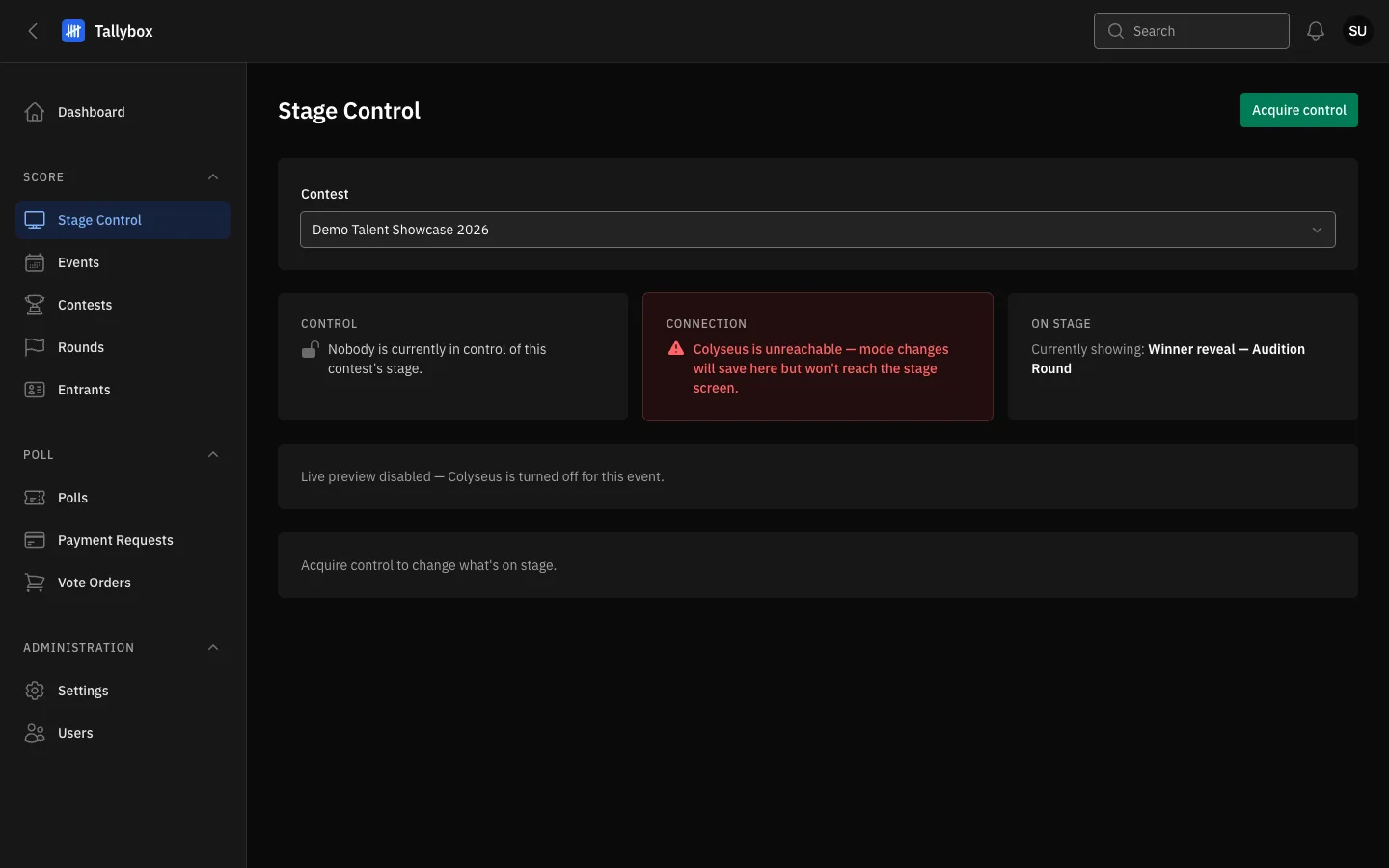
- Contest: pick the contest whose stage screen you are running.
- Acquire control: take charge of this contest's stage.
- Control: says whether nobody, you, or someone else is in charge.
- Connection: turns red when the stage screens cannot be reached.
- On stage: what the audience is looking at right now.
Take control
- Choose Acquire control
- Check that the Control panel says You have controlThe display buttons, Release control and (in winner reveal mode) Trigger reveal now appear.
Acquire control shows only when nobody else holds control. If the person who had control has not been seen for a while, the panel says so and you can take over without asking. While you keep this page open, Tallybox keeps your hold fresh. If you close the page or lose your connection, your hold goes stale after about 45 seconds.
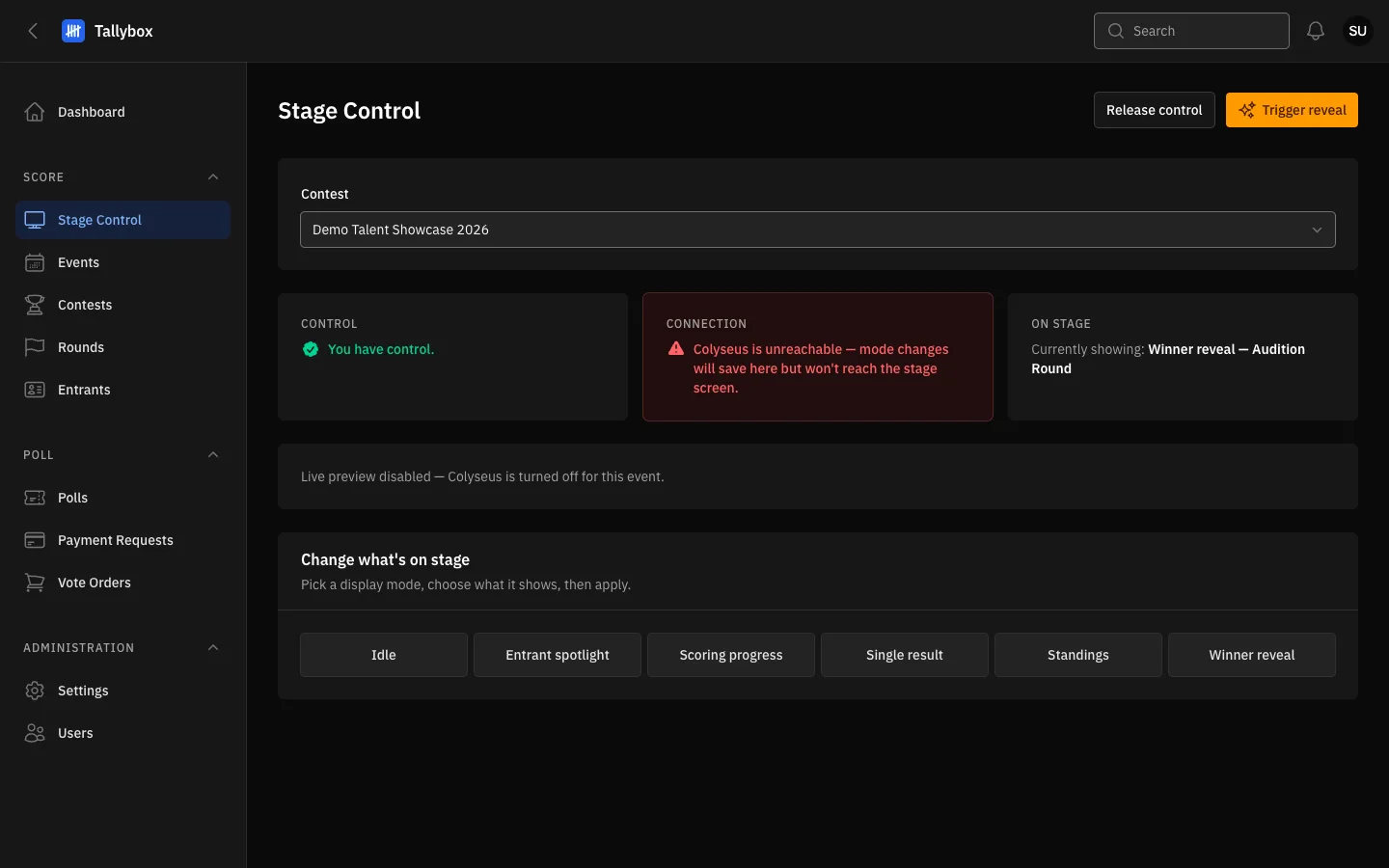
- You have control: you are the only person who can change the stage.
- Release control: hand control back when you are done.
- Trigger reveal: appears only while the stage is in Winner reveal mode.
- Display modes: choose what the audience sees.
Choose what the audience sees
- Choose a display buttonIdle blanks the screen. Entrant spotlight shows one entrant. Scoring progress shows how many scorecards a round has received. Single result shows one entrant's result. Standings shows the ranking. Winner reveal sets up the reveal.
- Pick what it showsDepending on the mode you pick an entrant, a round, or both. Result displays only list rounds whose results are released. Scoring progress lets you pick any round.
- Choose Apply
- Check the On stage panelIt now names the mode, round and entrant.
Idle takes effect as soon as you choose it. The other modes wait for Apply. Winner reveal is refused if the round is not released, or if first place is still tied. Record the tie decision first.
Trigger the reveal
- Set the display to Winner reveal for a released round
- Choose Trigger reveal at the top of the pageIt appears only while you hold control and the display is in winner reveal mode.
- Enter the Reveal duration in secondsIt starts at 5.
- Choose SubmitTallybox says Reveal triggered, and the stage plays the reveal. Choose Cancel to back out.
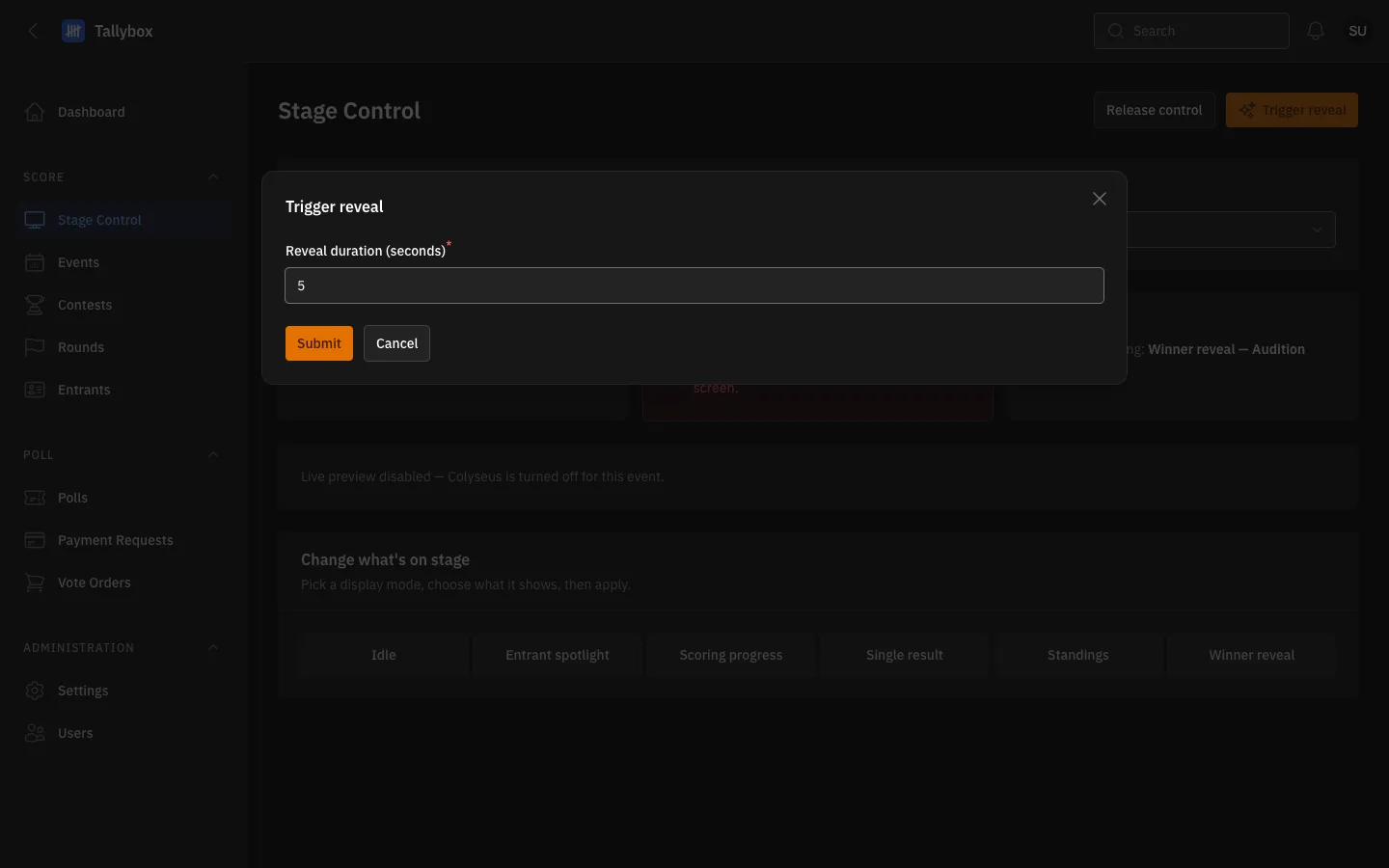
- Reveal duration: how many seconds the reveal takes.
- Submit: start the reveal on the stage.
- Cancel: close the window without revealing.
Release control
- Choose Release control when you are finishedRelease it so the next person is not blocked.
Release control shows only while you hold control.
If someone else has control
When another person is in control and still active, the Control panel names them and shows when they were last seen. Acquire control is replaced by a red Request takeover button. Choosing it asks you to confirm, then moves control to you. Use it only when you must, for example when the person has stepped away and their page is still open. The other person loses control at once.
The Operator Dashboard
An Operator's Dashboard has one card, Stage Control. Choose Open Stage Control to go to the page above. Super Admins and Admins do not see this card, because they have the full menu.
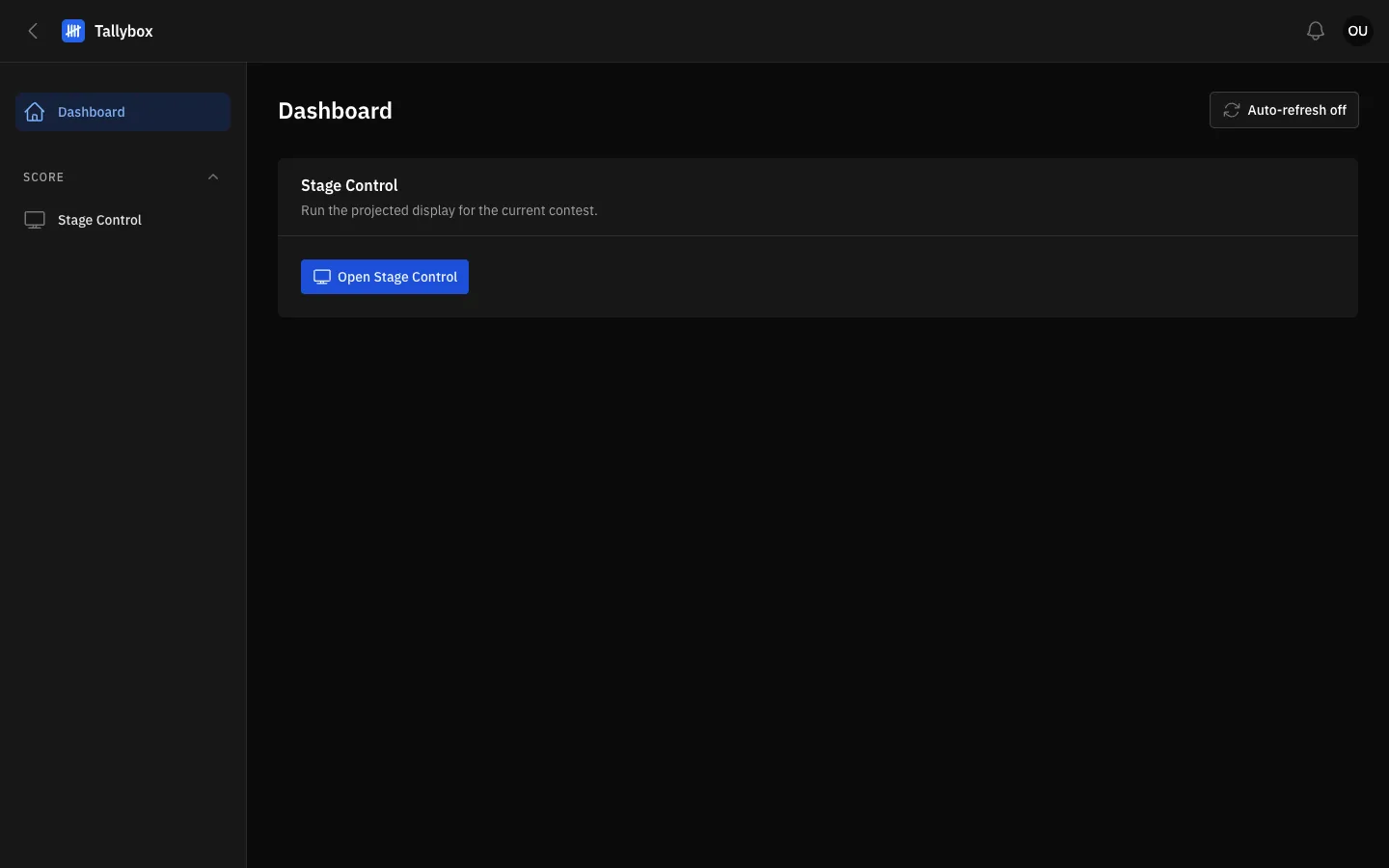
- Open Stage Control: opens the page described above.
For who can do what, see Who can do what.