Guide 5.5
Read and print poll results
See who is winning while a poll is open, and download the official results as a PDF once it has closed.
Who can do thisSuper AdminAdmin
Only a Super Admin or an Admin sees poll results. The Results tab and the Download results PDF button are hidden from Auditors, even though Auditors can read the rest of a poll.
Read the results
- Choose Polls, then View on the poll
- Choose the Results tab
- Read Rankings firstIt lists every entrant from the most votes down.
- Scroll down for Summary, By bundle, By location and By entrantThese break the votes and the money down by bundle sold, by where the voters are, and by entrant.
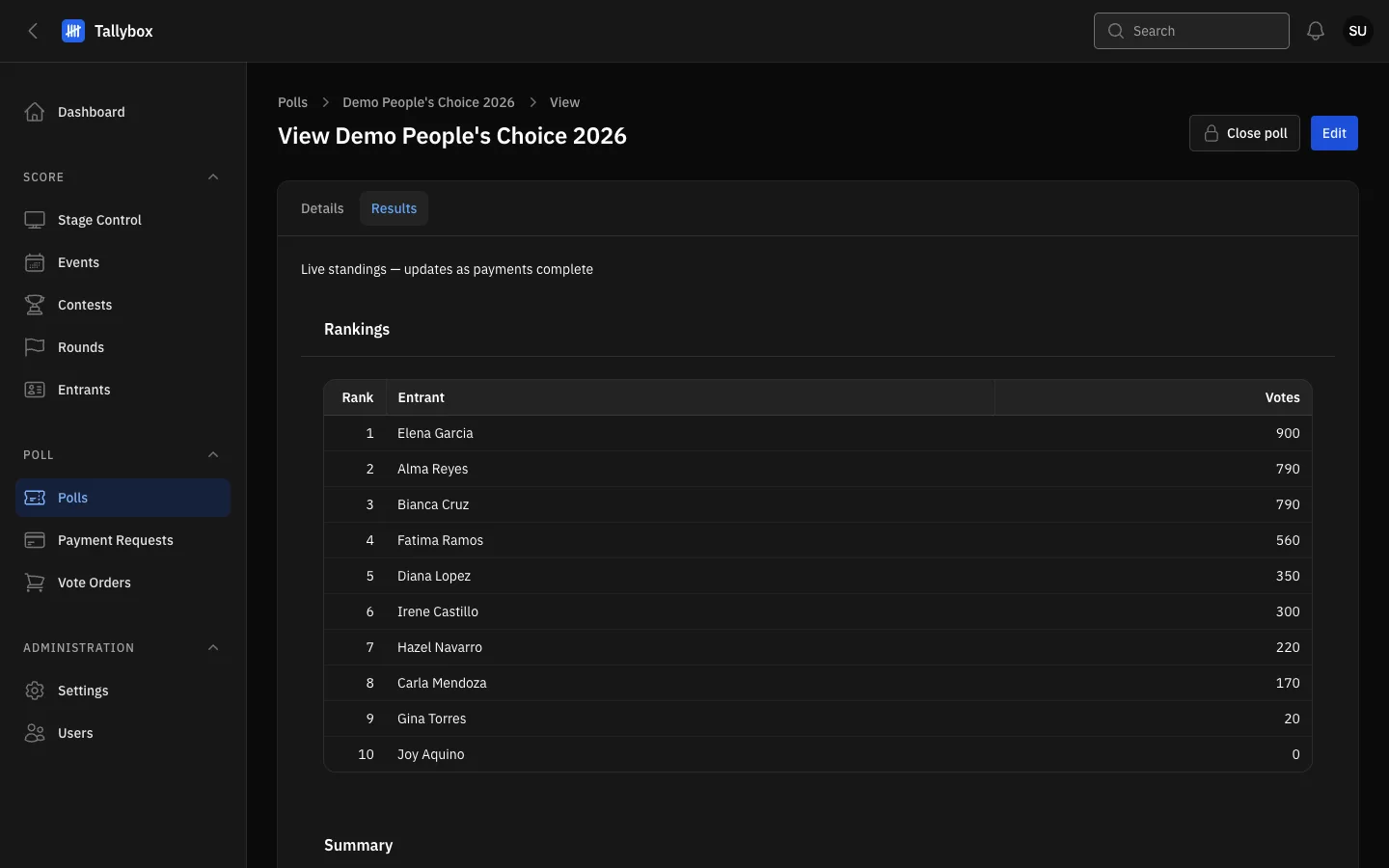
- Results tab. Hidden from Auditors.
- Rankings: the standings, most votes first.
- Votes: only votes from paid orders count.
Figures move while a poll is open. The page reads "Live standings", and it updates as payments complete. Once the poll is closed, the official result is the one saved at the moment you closed it. See Open and close a poll.
Download the results PDF
- Choose Polls, then View on a closed poll
- Choose Download results PDF at the top right
- Open the file that your browser saves
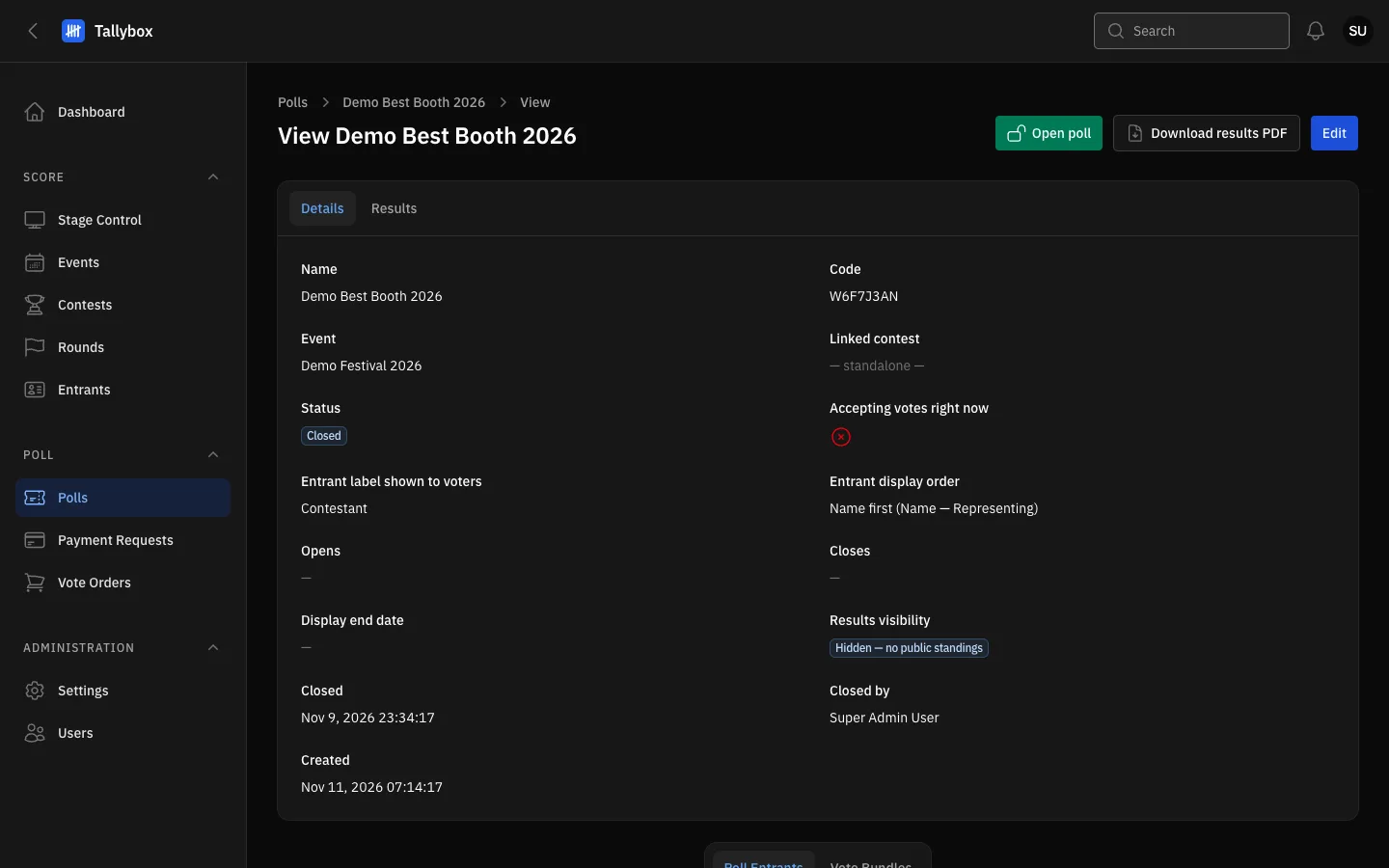
- Download results PDF: appears only for a poll that has been closed.
- Open poll: reopens the poll. Do not use it if you only want the PDF.
The PDF is the official result for a closed poll. It is the file to print or send on. A poll that is still open has no PDF button: close it first.
Reopening changes the official result. If you reopen a closed poll and close it again, the official result is replaced with the new one. Download the PDF again afterwards.