Guide 2.1
Create and manage events
An event is the umbrella over everything: its contests, rounds and polls. Create it first, and switch it off when it is over.
Who can do thisSuper AdminAdminAuditor
An event has a name and a start and end time. Every contest belongs to one event. Auditors can look at events but cannot change them.
Find your events
Choose Events in the menu on the left, under Score. The list shows each event's code, name, whether it is active, how many rounds it has, and its dates.
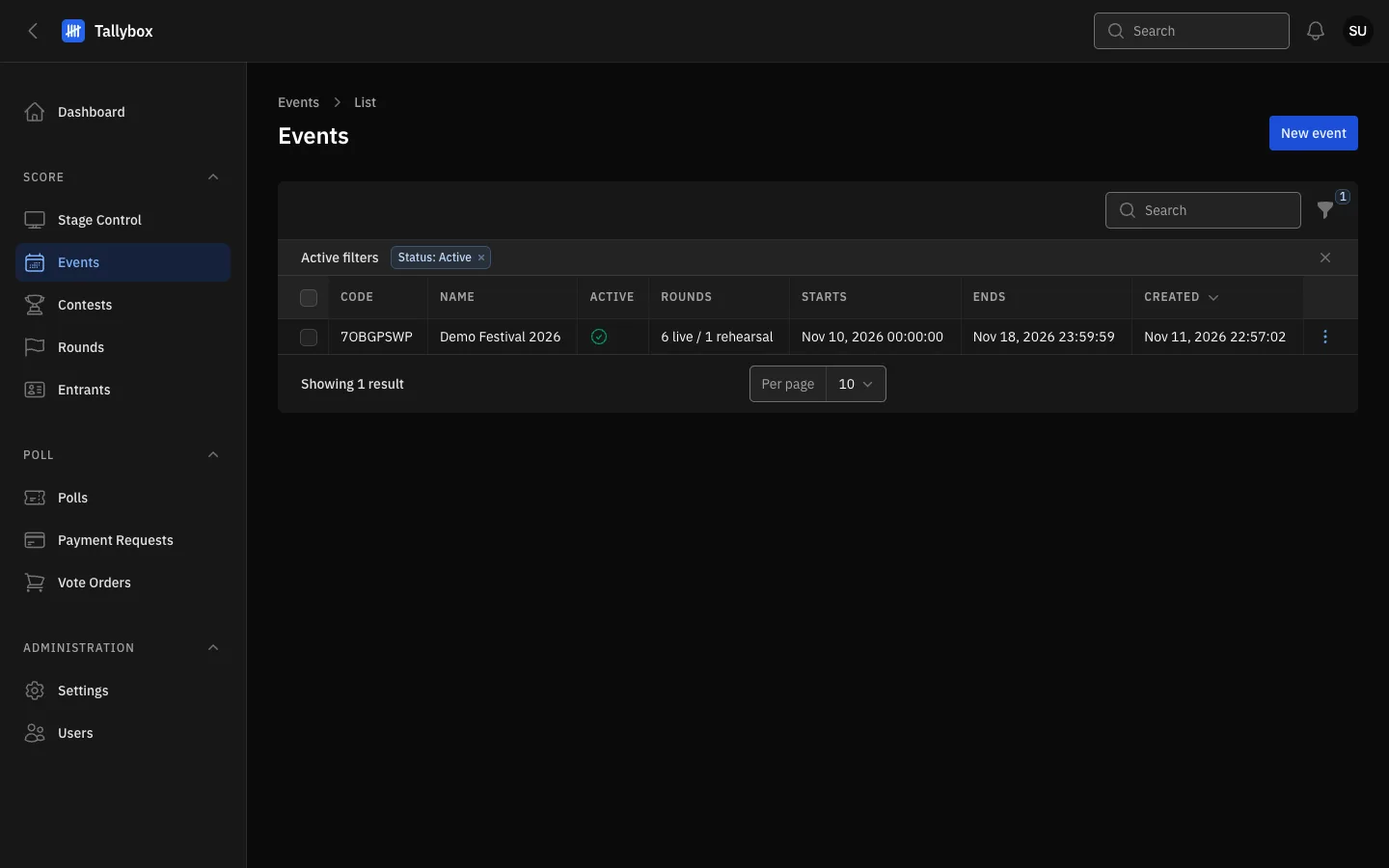
- New event: starts a new event (Admin and Super Admin only).
- Filter: the list shows active events only at first. Clear the Status filter to see switched-off events too.
- Tick one or more rows to act on several events at once.
- Row menu: View, Edit, and Activate or Deactivate.
Create an event
- Choose New event at the top right of the Events list
- Type the event name, then choose when it starts and ends
- Leave Active switched onA switched-off event is hidden from judges and from the Dashboard.
- Choose CreateChoose Create & create another instead if you have several events to add.
The form also has two optional sections, described below. You can fill them in later.
Set the document header
The Document header section controls the top of every printed sheet for this event, such as tabulation sheets and official results. With no logos, the event name prints instead.
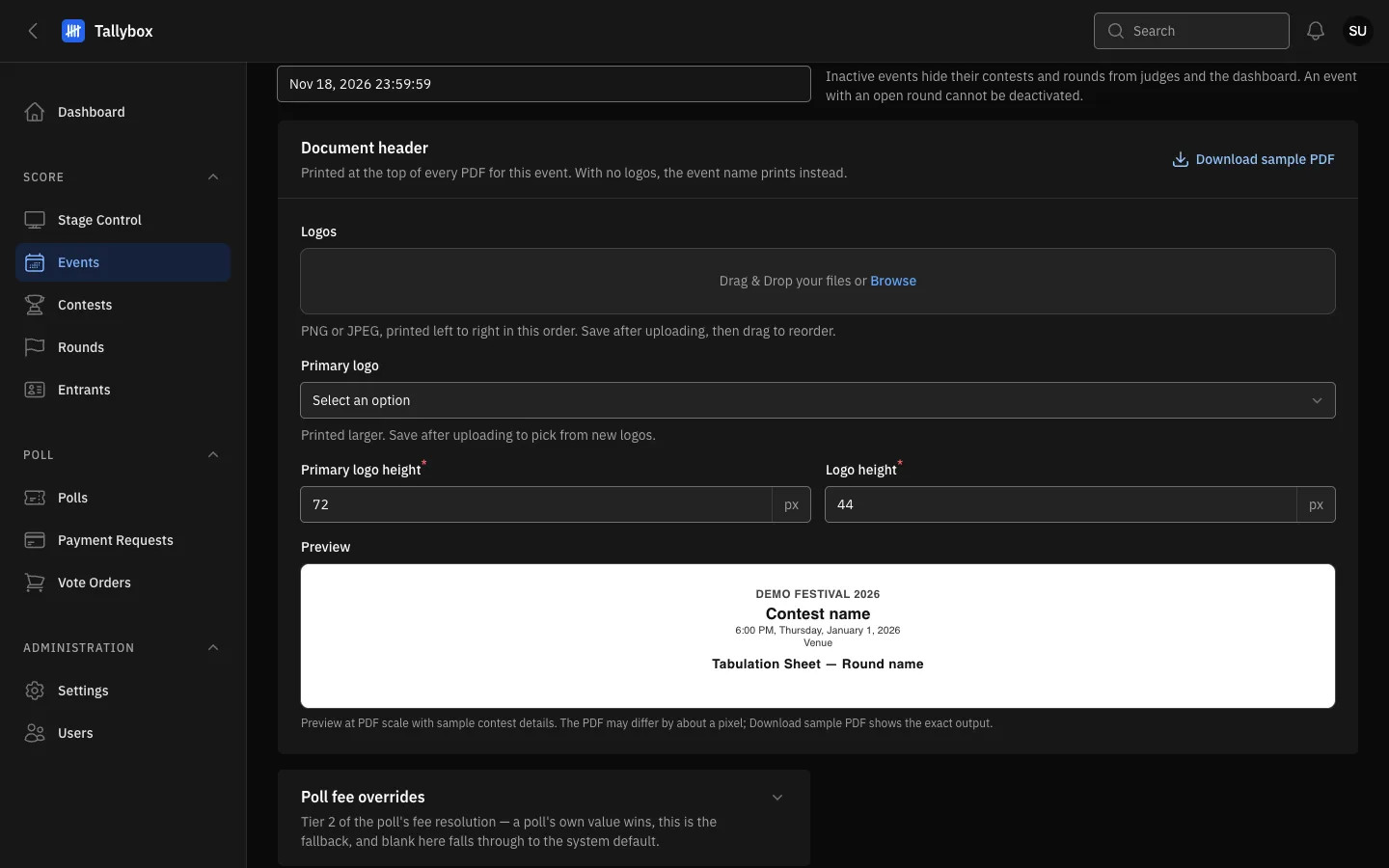
- Download sample PDF: opens a sample printed sheet with your header on it.
- Logos: drag in PNG or JPEG pictures. They print left to right in the order you give. Save, then drag to reorder.
- Preview: how the header will look at print size.
- Poll fee overrides: optional fees for public voting on this event (see the Public voting chapter).
- Save changes.
- Open the event and choose Edit
- Drag logo pictures into the Logos box, then choose Save changesNew logos only appear in the Primary logo list after you save.
- Pick the Primary logo, which prints larger than the othersAdjust the logo heights if the header looks too big or small in the preview.
- Choose Download sample PDF to check the printed result
View, edit, switch off or delete
- View shows the event on one page. Admins see an Edit button there.
- Deactivate (row menu) hides the event from judges and the Dashboard. The button says Activate on a switched-off event. An event with an open round cannot be deactivated.
- To switch several events at once, tick their rows, open Bulk actions and choose Activate or Deactivate.
- Delete is at the top of the Edit page, and Delete selected is in Bulk actions.
Deleting cannot be undone from the panel. Deleting an event removes it from your lists. Switch an event off instead unless you are sure it was made by mistake.